 SuperMac
Your Windows habits, on the Mac.
Alt-Tab, window snapping, Explorer, Task Manager, Windows keyboard layouts… everything you left behind when you switched, in one menu bar app. Light on battery; plug-ins you don't turn on never run.
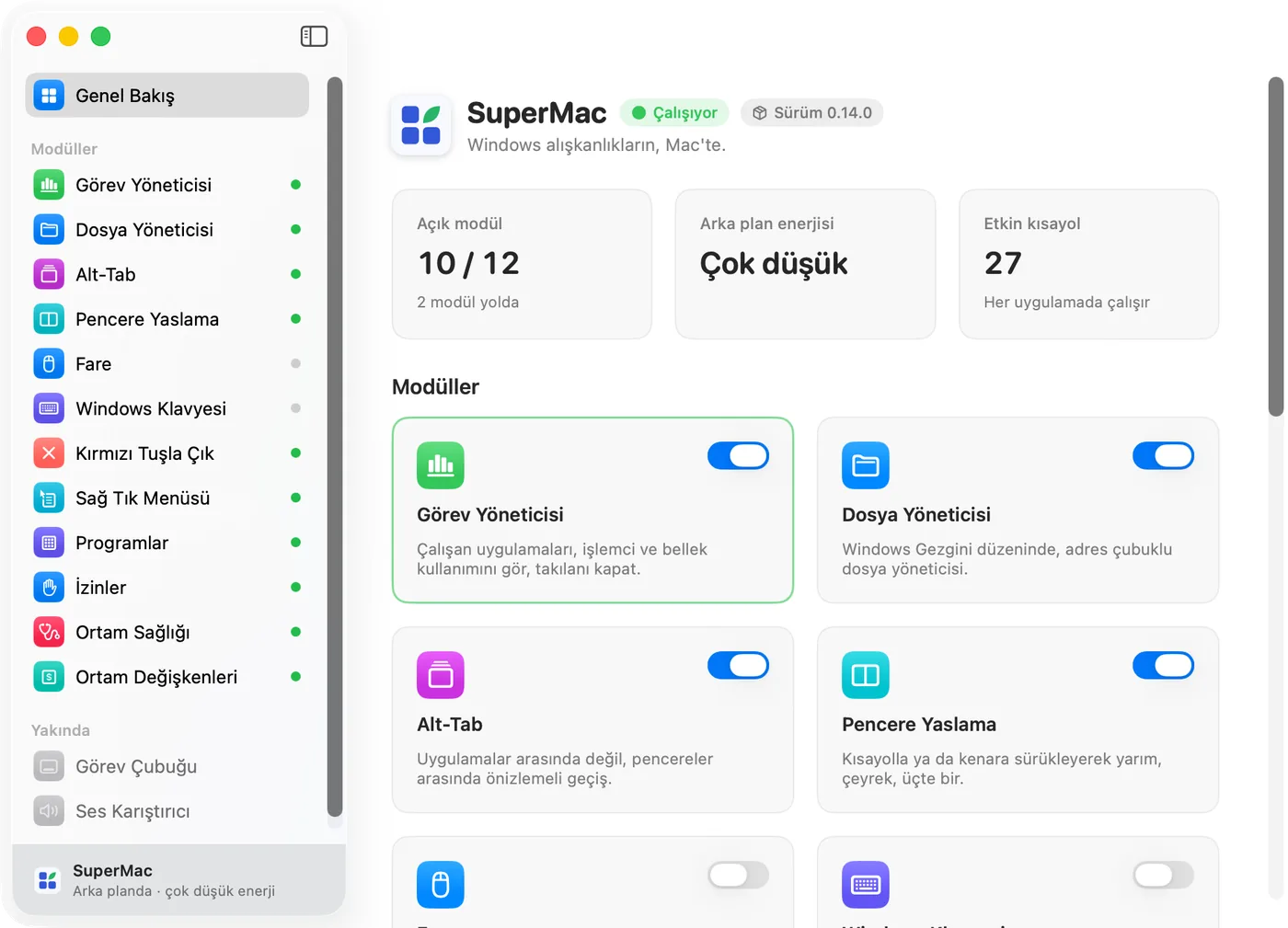
One Super plug-in for every habit.
Turn on what you need and leave the rest off. The name shown in the app is under each card.
-
SuperTab
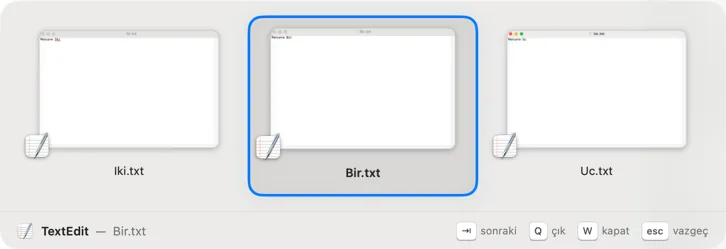
In the app: Alt-Tab⌥ ⇥ switches between every window with previews, not just between apps.
Open screenshot -
SuperSnap
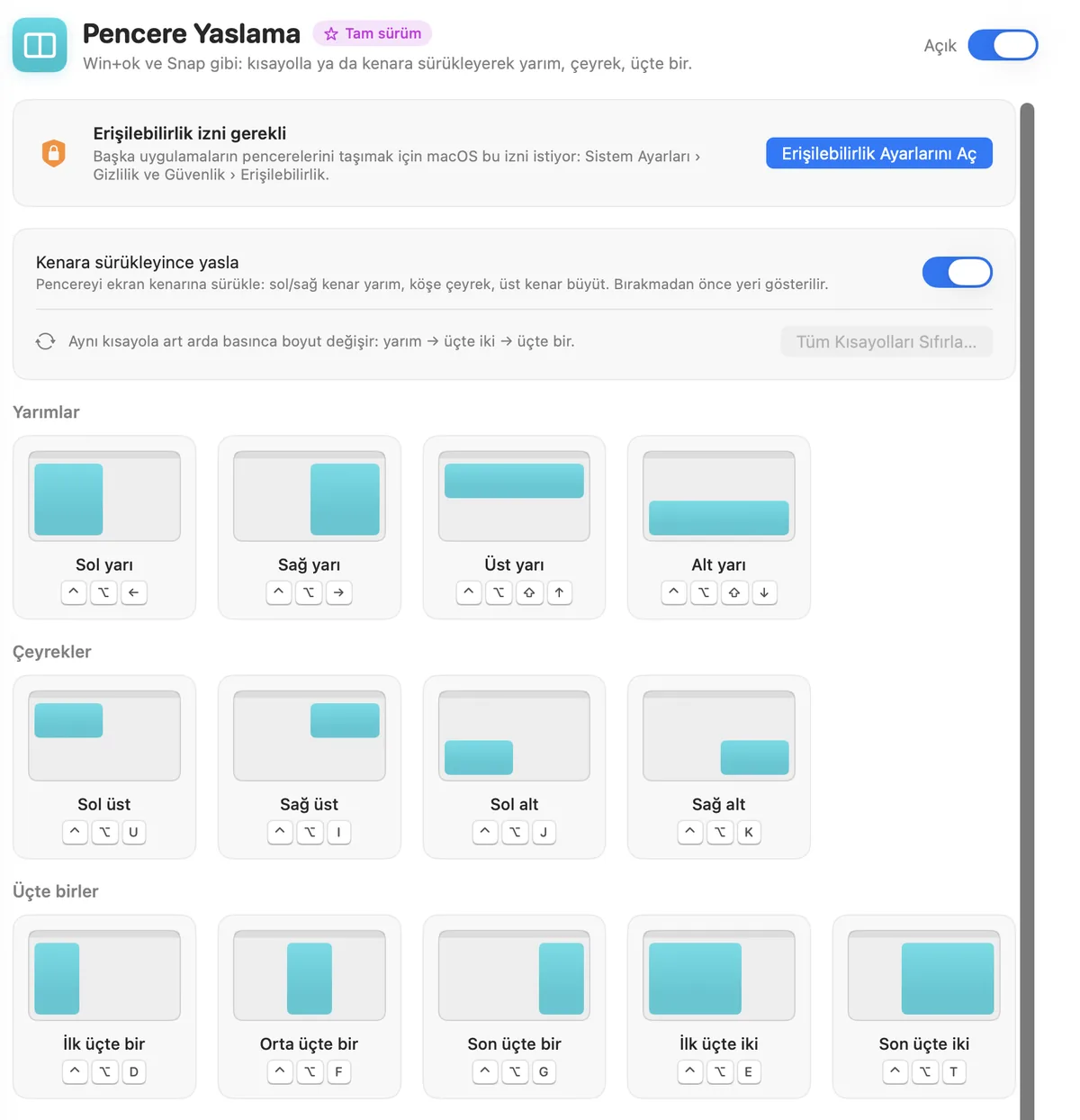
In the app: Window SnappingSnap windows to halves, quarters or thirds. Drag to an edge or press a shortcut; move between displays.
Open screenshot -
SuperQuit
In the app: Quit with Red ButtonClose an app's last window with the red button and the app quits, just like on Windows. You choose the exceptions.
Screenshot coming soon -
SuperKeys
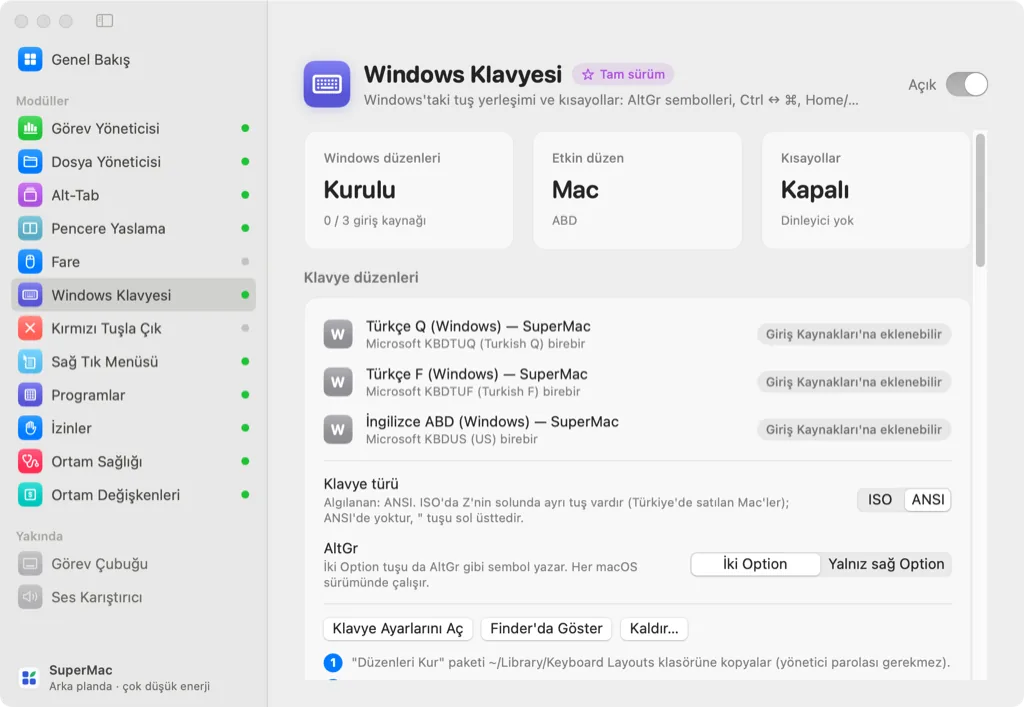
In the app: Windows KeyboardWindows Turkish Q and F and US layouts, AltGr symbols, Ctrl ↔ ⌘ and Home/End.
Open screenshot -
SuperMouse
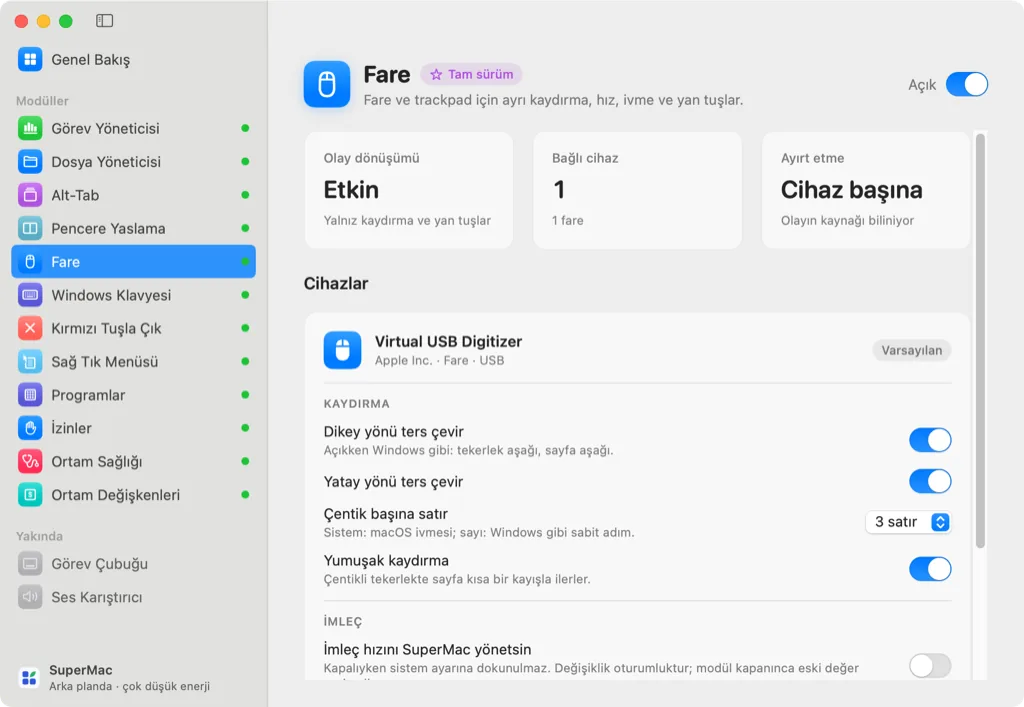
In the app: MouseSeparate scroll direction and speed for mouse and trackpad, per device. Side buttons for back and forward.
Open screenshot -
SuperTask
In the app: Task ManagerProcess tree, open ports, Windows-style CPU percentage and startup items. End a stuck app in one click.
Screenshot coming soon -
SuperFiles
In the app: File ManagerAn Explorer-style file manager with an address bar. Real cut and paste, tabs, ⌫ to go back.
Open screenshot -
SuperMenu
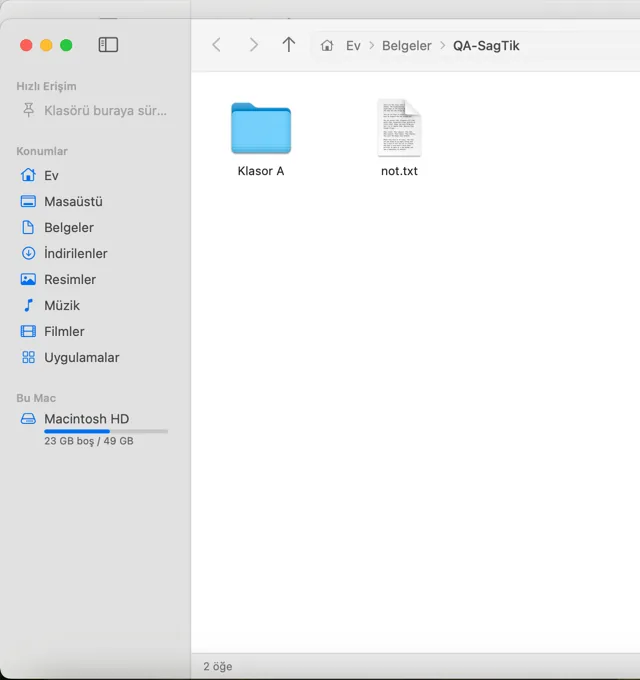
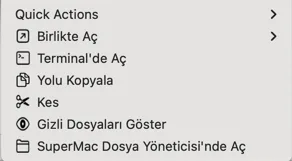
In the app: Context MenuRight-click in Finder: New ▸ Word, Excel, text document; open in Terminal, copy path, cut.
Open screenshot -
SuperClean
In the app: ProgramsUninstall apps together with their leftovers and find orphaned folders from apps you already deleted. Everything goes to the Trash first.
Screenshot coming soon -
SuperDev
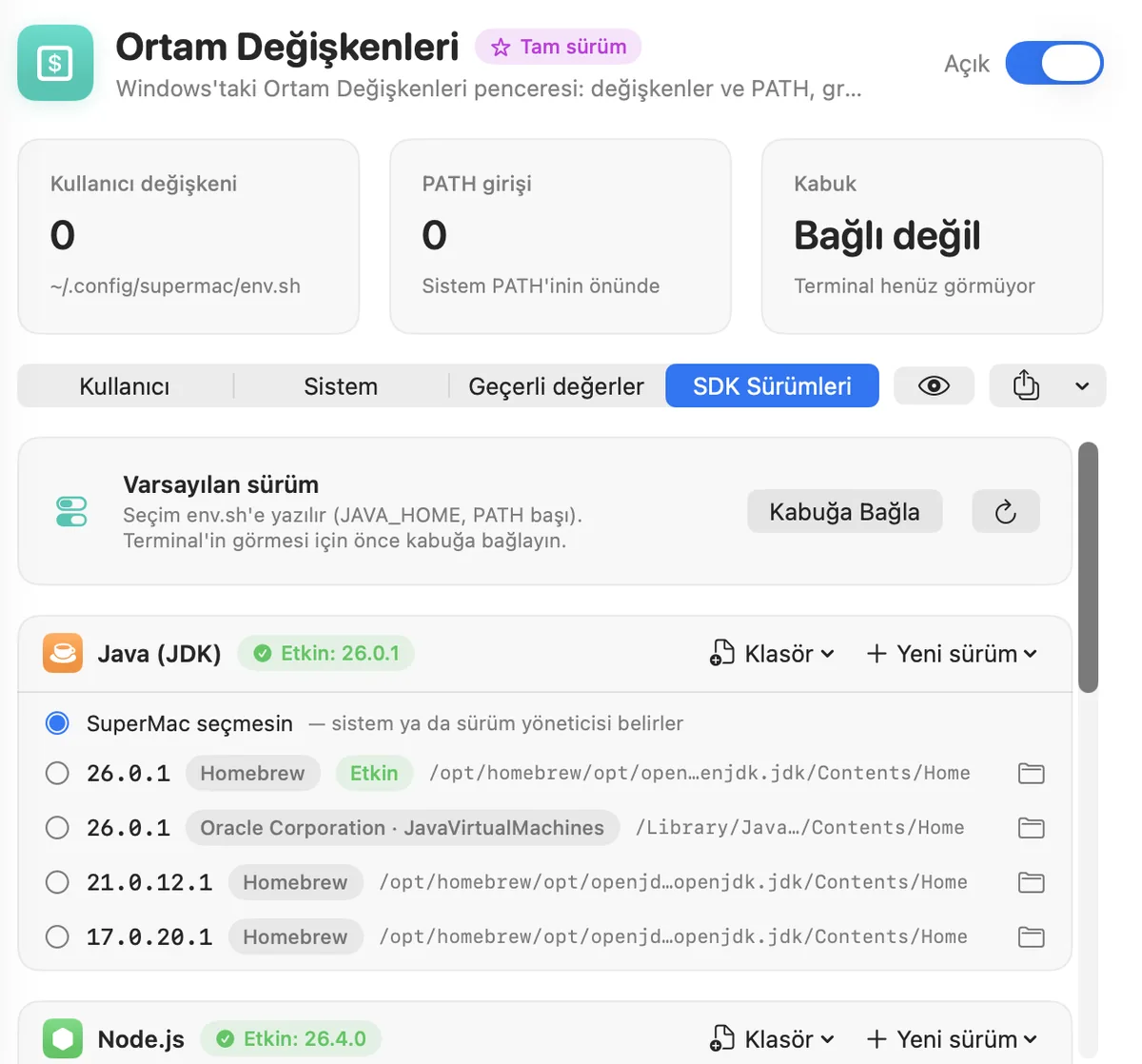
In the app: Environment Variables, Environment Health, PermissionsEnvironment variables and PATH, Java/Node/Python version switching, dev environment health checks and app permissions.
Open screenshot
Quiet in the background.
SuperMac waits in the menu bar. Until you do something, it does nothing.
-
Event-driven
No constant scanning or polling. It runs when you press a key or drag a window, then goes back to waiting.
-
Off means off
No listeners, timers or services are set up for plug-ins you haven't turned on. Turn one off and it stops completely.
-
Heavy work only on demand
Task Manager sampling, app sizes and environment scans only run while their page is open and stop when you close it.
Download, install, approve the first launch.
It takes about two minutes. macOS shows a warning once on first launch; the steps below get you past it.
SuperMac 0.15.0-beta · zip, 4.2 MB · Download as DMG · SHA-256 1e5f37f480bfa2c2… · After downloading, follow the install steps below.
Why the warning? During the beta, SuperMac is distributed without an Apple developer account, so macOS says it “could not be verified” the first time you open it. This happens once; after you approve it, SuperMac opens normally.
Don't press Move to Trash; OK (or Done) is all you need.
-
Download the zip
Press Download the beta. Safari usually unzips it for you; if not, double-click the file in Downloads.
-
Drag to Applications
Drag the SuperMac icon into the Applications folder in Finder.
-
Double-click to open
Double-click SuperMac in Applications. The first time, macOS shows a warning.
-
Press “OK”
On the “SuperMac could not be verified” warning, press OK (Done on some versions). The app doesn't open yet; that's expected.
-
“Open Anyway”
Open System Settings › Privacy & Security and scroll to the bottom. Press Open Anyway next to SuperMac.
-
Confirm with your password
Enter your login password (or use Touch ID) and choose Open Anyway once more. SuperMac settles into the menu bar.
macOS 15 Sequoia and macOS 26 Tahoe: Control-click › Open no longer bypasses this warning; the only way is the Open Anyway button in Privacy & Security. It stays visible for about an hour after you try to open the app; if you don't see it, repeat step 3.
macOS 14 Sonoma: The same steps work. There's also a shortcut: Control-click SuperMac in Applications, choose Open, then press Open again on the warning.
Then: permissions
Only the plug-ins you use need permissions. Each plug-in page has a button that takes you straight to the right setting.
Accessibility
To move other apps' windows and translate keyboard and mouse events the Windows way.
- SuperSnap
- SuperTab
- SuperKeys
- SuperMouse
- SuperQuit
System Settings › Privacy & Security › Accessibility › turn on SuperMac.
Screen Recording
Only for SuperTab's window previews. Nothing is recorded or sent anywhere.
- SuperTab
Privacy & Security › Screen & System Audio Recording (macOS 14: Screen Recording) › SuperMac. Then quit and reopen SuperMac.
Finder extension
SuperMenu's context menu items come from a Finder extension, which macOS asks you to enable separately.
- SuperMenu
System Settings › General › Login Items & Extensions (macOS 14: Privacy & Security › Extensions) › SuperMac.
Optional: SuperClean may ask for Full Disk Access to see other apps' container folders. It works without it; those folders' sizes just aren't shown.
xattr -dr com.apple.quarantine /Applications/SuperMac.app
Try it first, keep it if you like it.
Every plug-in is fully unlocked for 3 days. License keys are free during the beta.
- All plug-ins on, no features held back.
- No account, no card details.
- When the trial ends, a free beta key lets you carry on where you left off.
- License terms for the stable release will be announced here before launch.
Frequently asked
Does it run on Apple Silicon and Intel Macs?
Yes. SuperMac is a single universal app that runs natively on both M-series and Intel Macs. No Rosetta needed.
Which macOS versions are supported?
macOS 14 Sonoma and later: 14, 15 Sequoia and 26 Tahoe. It won't open on older versions.
Will it drain my battery?
SuperMac is event-driven: no constant scanning, plug-ins that are off never run, and pages that sample data only work while open. To see for yourself, check the Energy tab in Activity Monitor.
Does it collect my data?
No. No account, no analytics, no ads. SuperMac works offline and your settings stay on your Mac. Details on the privacy page (Turkish).
Why does macOS say it “could not be verified”?
The beta is distributed without an Apple developer account, so macOS asks for approval on first launch. Approve it once using the install guide.
Will my Windows Ctrl shortcuts work?
Turn on the Ctrl ↔ ⌘ swap in SuperKeys and shortcuts like Ctrl C and Ctrl V work as on Windows; Home and End jump to the start and end of the line. Each option can be toggled separately.
How do I uninstall SuperMac?
If you installed the Windows keyboard layouts, remove them first with the Remove… button on the SuperKeys page. Then choose Quit SuperMac from the menu bar icon and move the app from Applications to the Trash.
To remove settings too, delete the ~/Library/Application Support/SuperMac folder and the file with “supermac” in its name inside ~/Library/Preferences.
What if I find a bug?
A feedback channel opens together with beta key requests. Until then, follow what changes in the release notes (Turkish).